 Elite Hub
Bufferbloat Explained: Why Fast Speed Tests Still Lag
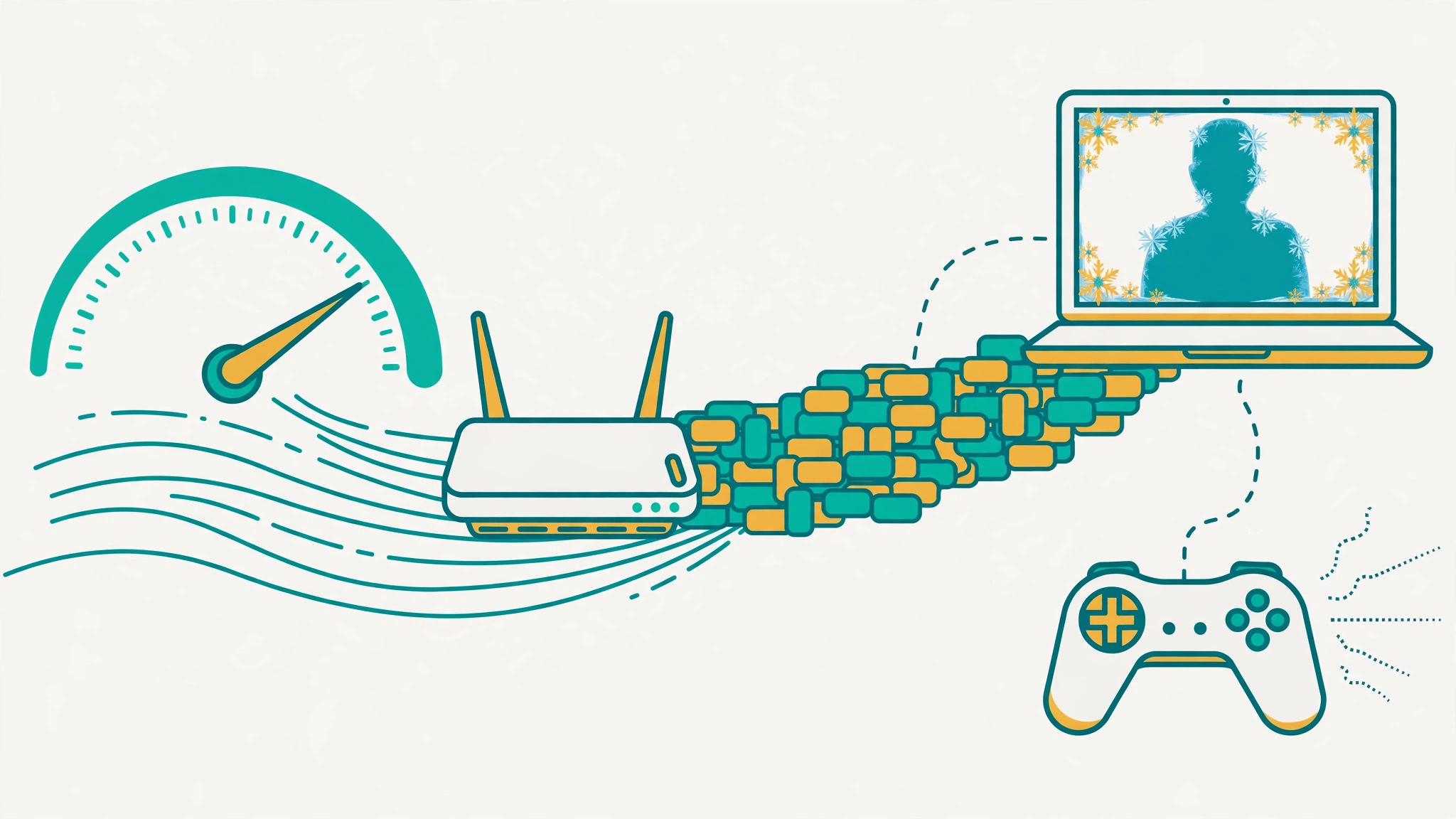
Bufferbloat explained in one sentence: when your connection is busy, your router stores too many packets in an oversized buffer instead of letting them through or dropping them, so real-time traffic like Zoom and gaming waits in a long queue. Your speed test still shows full speed because it measures capacity, not the delay your packets suffer while waiting in line.
What is bufferbloat, in plain English?
Think of your internet connection as a checkout line at a supermarket. Packets of data are the shoppers, and your router has a waiting area — a buffer — where packets stand while they wait their turn to go out to the internet.
Years ago, buffers were small. If the line got too long, extra packets were dropped and the sender slowed down — which kept the line short and moving. Modern routers went the other way: they made buffers enormous, sometimes holding seconds' worth of data. Nothing gets dropped, but everything waits. That waiting is latency, and when the buffer is full of one big upload, your game or video-call packet has to stand behind thousands of others.
That is bufferbloat: delay caused by a buffer that is too big for its own good. It is worst on the upload side, because most home connections have far less upload speed than download speed — a 300 Mbps plan might have only 20 Mbps of upload. A single phone backing up photos to the cloud can fill that narrow upload pipe completely, and once the buffer fills, every device in the house feels it.
Why does my speed test look fast but Zoom and gaming lag?
This is the exact symptom that makes bufferbloat so confusing — and so often misdiagnosed. A speed test measures throughput: how much data your connection can move per second. It runs for a few seconds, one stream at a time, and reports the biggest number it sees. It does not measure what happens to a small, urgent packet while a big transfer is running.
Zoom, online games, and voice calls care about something else entirely: latency, the time a packet takes to get there and back. A video call needs packets to arrive within roughly 150 milliseconds. When bufferbloat adds 300, 500, or even 1,000 milliseconds of queueing delay, the call freezes and the game stutters — even while a speed test in the next tab cheerfully reports 300 Mbps.
Here is the tell-tale pattern. Everything is fine until someone in the house starts an upload: a cloud backup, a video to YouTube, a photo sync, a game update. Suddenly voices robotize, faces freeze, and your game character teleports. The moment the upload finishes, everything is perfect again. If that sounds familiar, you are not looking at a slow connection — you are looking at bufferbloat. Our guide on what ping is and how to lower it explains the latency side in more detail, and our jitter and packet loss guide covers the other two metrics that suffer when queues fill up.
How do I test for bufferbloat at home?
You can measure bufferbloat in two minutes with tools you already have. The idea is simple: compare your latency when the connection is idle with your latency when it is under load. The difference between the two numbers is your bufferbloat.
- Idle ping: with nothing uploading or downloading, open a terminal or command prompt and run
ping -c 20 8.8.8.8(Mac/Linux) orping -n 20 8.8.8.8(Windows). Note the average — most fibre and cable connections sit between 10 and 30 ms. - Loaded ping: start a large upload — a cloud backup, a big file to Google Drive, or a speed test's upload phase — and run the same ping command again while it is running.
- Compare. Use this table to read your result:
| Loaded ping minus idle ping | What it means |
|---|---|
| Under +20 ms | Excellent — no bufferbloat worth fixing |
| +20 to +60 ms | Mild bufferbloat — noticeable in competitive games |
| +60 to +200 ms | Bad bufferbloat — calls freeze, games stutter |
| Over +200 ms | Severe bufferbloat — fix this before upgrading your plan |
If you would rather not use the command line, run the dedicated bufferbloat test at waveform.com/tools/bufferbloat — it loads your connection up and down and gives you a simple grade from A+ to F. Run it once when the house is quiet, then again on a busy evening, and compare. Before you conclude anything, confirm your baseline speed with the speed test on this site — if the raw speed itself is far below your plan, fix that first.
What causes bufferbloat — and what actually fixes it?
Bufferbloat has one root cause: a queue with no fairness. Your router treats every packet the same, first come, first served. A 4K video upload is thousands of big packets; a game update is a few tiny ones. First-come, first-served means the tiny urgent packets wait behind the big patient ones — exactly backwards from what you want.
The proper fix is called Smart Queue Management (SQM). It keeps the queue short, so packets wait milliseconds instead of seconds, and it shares the connection fairly, so a single upload cannot starve everything else. Two algorithms do this job well: fq_codel and cake. Both are built into the open-source router firmware OpenWrt, and both appear in a growing number of consumer routers as "SQM", "Smart Queue", or "Anti-Bufferbloat" settings.
The setting that matters most is the speed cap. SQM works by taking control of the queue, and it can only do that if your router — not your ISP — is the bottleneck. So set the SQM download and upload speeds to about 90–95% of your plan's real maximum. Giving up that last 5–10% of headline speed buys you stable, low latency at all hours: a 280 Mbps connection with 20 ms of loaded latency beats a 300 Mbps connection with 400 ms every time.
Can I fix bufferbloat without buying a new router?
Often, yes. Before spending money, work through these steps in order — most households fix the worst of it with the first two:
- Turn on SQM if your router has it. Check the QoS or traffic-management section for "SQM", "Smart Queue", "fq_codel", or "cake". Enable it, set the speeds to 90–95% of your plan, and re-run the loaded-ping test.
- Cap your upload speed manually. If there is no SQM option, look for a bandwidth limiter or upload cap in the same QoS section. Limiting uploads to 90% of your plan's upload speed keeps the queue from ever filling completely — a blunt tool, but it works.
- Schedule the heavy uploads. Set cloud backups, photo syncs, and game updates to run overnight. Pause them before video calls. This is not a real fix, but it removes the trigger on the evenings that matter.
- Use a cable for the things that matter. A wired connection does not fix bufferbloat, but it removes WiFi's own delays from the total. See our guide on why your WiFi is so slow for the full diagnosis.
- Upgrade the firmware or the router. If your router has no queue management at all, check for a firmware update — some vendors add SQM later. If nothing helps, a router that runs OpenWrt or ships with fq_codel/cake built in is the permanent fix, and it is usually cheaper than a year of a faster plan that would not have solved the problem.
One thing not to do: do not pay for a faster plan to fix bufferbloat. A faster download does nothing for a choked upload queue, and a faster upload only makes the buffer fill faster. Fix the queue first — then decide whether you still need more speed.
Frequently Asked Questions
What is bufferbloat in simple terms?
Bufferbloat is delay caused by oversized buffers in your router or modem. When your connection is busy, packets queue up in those buffers instead of being dropped, so real-time traffic like video calls and games has to wait in line behind bulk uploads and downloads. The result is high latency even though your speed test looks fast.
How do I know if I have bufferbloat?
Compare your ping when the connection is idle with your ping while it is under load. If idle ping is around 15 ms but jumps to 200 ms or more while someone uploads a file or backs up photos, you have bufferbloat. A dedicated bufferbloat test (such as the one at waveform.com/tools/bufferbloat) measures this for you and grades the result.
Does bufferbloat affect gaming?
Yes — gaming is one of the things bufferbloat hurts most. Games send small, time-sensitive packets, and bufferbloat makes them wait behind large uploads and downloads in your router's queue. That shows up as rubber-banding, delayed shots, and ping spikes, even on a 300 Mbps connection.
Can I fix bufferbloat without buying a new router?
Often, yes. Enable SQM or Smart Queue in your router's settings if it has the option, cap your upload speed at 90–95% of your plan's maximum, and pause cloud backups and large uploads during calls and games. If your router has no SQM setting, a firmware upgrade or a router that supports fq_codel or cake will fix it properly.
Test Your Connection Under Load
Run a speed test now, then run a ping test while an upload is running — the gap between the two numbers tells you whether bufferbloat is your problem.
Test Your Speed Free