 Elite Hub
How to Change DNS for Faster Internet (Router + Devices)
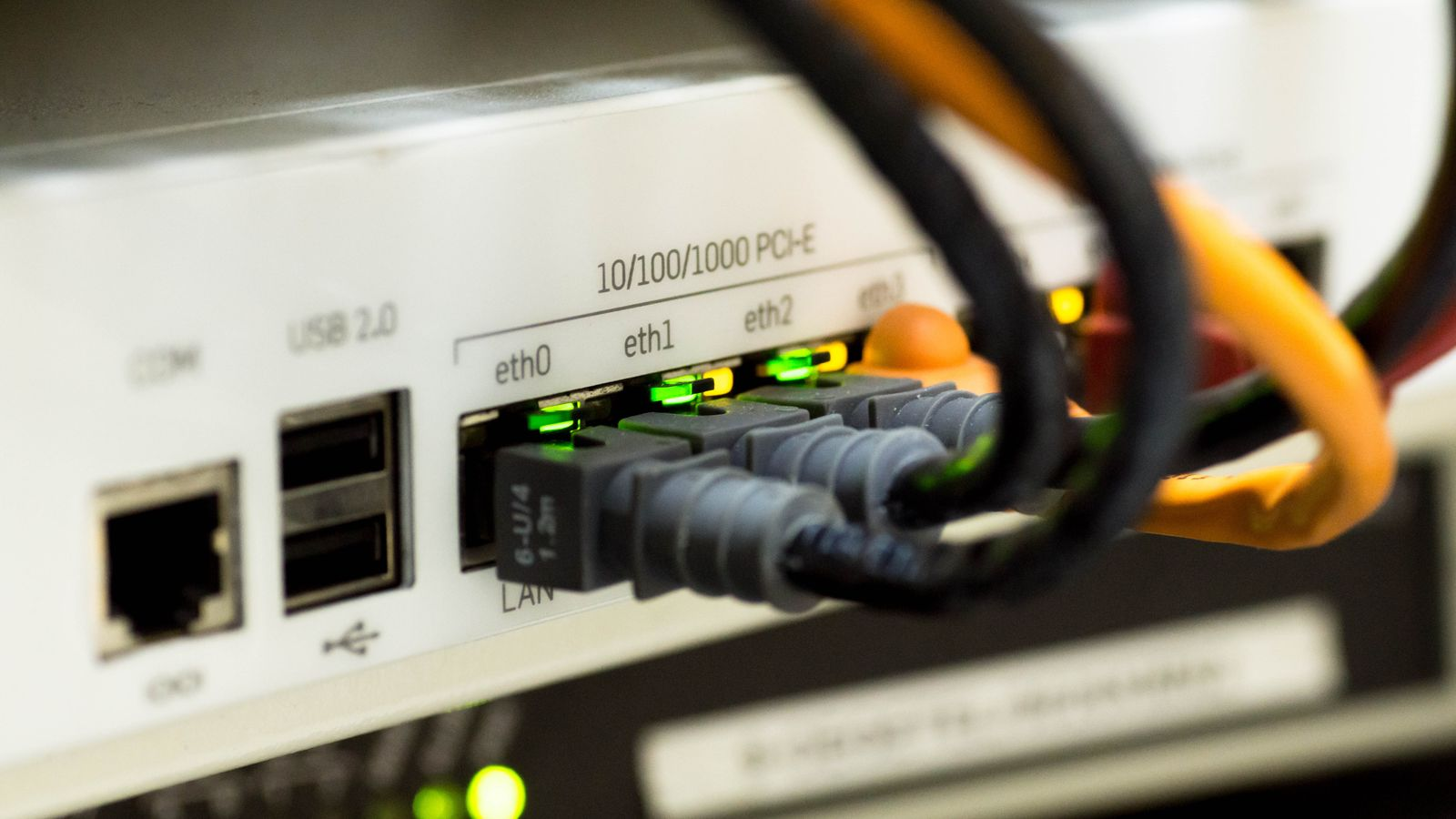
To change DNS for faster internet, switch your router or device from your ISP's DNS to a fast resolver such as Cloudflare (1.1.1.1) or Google (8.8.8.8). It takes five minutes, it is free, and it is reversible. Expect snappier browsing — pages start loading sooner — but not a higher speed-test number, because DNS cannot change your download speed.
- What is DNS, and why does changing it speed things up?
- Which DNS server is fastest — Cloudflare, Google, or Quad9?
- How to change DNS for faster internet on your router
- How do I change DNS on Windows, Mac, iPhone, and Android?
- How do I test whether the new DNS is actually faster?
- What can DNS not fix?
- Frequently asked questions
What is DNS, and why does changing it speed things up?
DNS is the internet's phone book. Every time you open a website, your device asks a DNS server to translate the name you typed — say, example.com — into the numerical address the network actually uses. That lookup happens before anything loads — and a single page can trigger dozens of them.
Your internet provider assigns you its own DNS servers automatically, and those servers are often slow, overloaded, or far away. A slow DNS server adds 50–100 milliseconds to every lookup; a fast public one answers in 10–20 ms. One slow lookup is nothing — but fifty per page, across every page you open all day, is a delay you can feel: pages that hang briefly before anything appears. That "hang" is what changing DNS fixes.
It also explains what DNS does not do. It cannot raise your download speed, fix buffering on a 4K stream, or lower your gaming ping — those depend on your plan and your connection quality, not on lookups. Think of DNS as the time it takes to find the address; the speed of the drive there is a separate thing.
Which DNS server is fastest — Cloudflare, Google, or Quad9?
There is no single fastest DNS server for everyone — the answer depends on which server is physically closest to you. Pick one as your primary and another as the secondary, so your connection still works if the first one is briefly unreachable.
| Provider | Primary DNS | Secondary DNS | Why pick it |
|---|---|---|---|
| Cloudflare | 1.1.1.1 | 1.0.0.1 | Usually the fastest lookups worldwide; privacy-focused, no browsing data sold |
| 8.8.8.8 | 8.8.4.4 | Extremely reliable and widely available; the default choice for many routers | |
| Quad9 | 9.9.9.9 | 149.112.112.112 | Blocks known malicious domains automatically; slightly slower than Cloudflare for some users |
Start with Cloudflare as primary and Google as secondary — fast for most homes, with a fallback from a different provider. If you want malicious sites blocked at the network level, Quad9 is the better primary. Two servers is enough; a third only adds confusion when you troubleshoot.
How to change DNS for faster internet on your router
Changing DNS on the router is the best option: one change covers every device on your Wi-Fi, including phones, smart TVs, and game consoles. The steps are nearly the same on every brand — only the menu names differ.
- Open your router's admin page. In a browser, go to 192.168.1.1 or 192.168.0.1 (check the sticker on the bottom of the router if neither loads). Log in with the admin password — also printed on that sticker unless you changed it.
- Find the DNS setting. Look under Internet, WAN, Network, or DHCP settings for a field labelled "DNS Server", "Primary DNS", or "DNS Address". On some routers it sits inside the DHCP or LAN section instead.
- Enter the new addresses. Set Primary DNS to 1.1.1.1 and Secondary DNS to 8.8.8.8. If your router has only one DNS field, enter 1.1.1.1. Save or apply the change.
- Restart the router. Unplug it for 10 seconds, plug it back in, and wait for the lights to settle. Then restart your devices too, or disconnect and reconnect their Wi-Fi — devices cache the old DNS setting until they rejoin.
If your router is supplied by your ISP and the DNS fields are greyed out, your provider has locked them. That is common on ISP-supplied hardware. In that case, change DNS per device instead (below) — or put the ISP router in bridge mode behind your own router, which gives you full control over settings like DNS and bufferbloat fixes.
How do I change DNS on Windows, Mac, iPhone, and Android?
Per-device DNS is the fallback when the router is locked, or when you want different DNS on one device — for example, a laptop you carry to other networks.
- Windows 11: Settings → Network & internet → Wi-Fi → your network → DNS server assignment → Edit → Manual. Turn on IPv4, enter 1.1.1.1 as Preferred DNS and 8.8.8.8 as Alternate DNS, then Save.
- Mac: System Settings → Network → Wi-Fi → Details next to your network → DNS. Click + and add 1.1.1.1, click + again and add 8.8.8.8, then click OK.
- iPhone: Settings → Wi-Fi → tap the (i) next to your network → Configure DNS → Manual. Remove the existing servers, add 1.1.1.1 and 8.8.8.8, then Save.
- Android: Settings → Network & internet → Private DNS → Private DNS provider hostname → enter one.one.one.one (Cloudflare's hostname) and Save. Android's Private DNS uses encrypted DNS, so it takes a hostname rather than numbers — 1.1.1.1's hostname is one.one.one.one.
One caution: a per-device DNS setting applies only to the Wi-Fi network you set it on — other networks use their own DNS. And if you use a VPN, the VPN's own DNS usually overrides yours while it is connected — our guide on whether a VPN slows down your internet explains the trade-off.
How do I test whether the new DNS is actually faster?
Do not trust how it "feels" — run a before-and-after test so you know whether the change helped. The whole test takes about ten minutes.
- Measure the old DNS first. Before changing anything, open a command prompt or terminal and run nslookup example.com three times. Note the response times. Then open three websites you visit daily and note roughly how long each takes to start showing content.
- Change DNS and flush the cache. After switching, run ipconfig /flushdns on Windows or sudo dscacheutil -flushcache on Mac to clear old lookups. On phones, toggle Wi-Fi off and on.
- Measure again the same way. Run the same nslookup three times and open the same three websites. A good switch cuts lookup times roughly in half, from 50–100 ms to 10–20 ms. If nothing changed, try Google (8.8.8.8) as primary instead.
- Confirm with a speed test. Run the test at elitehub.site before and after. Your download and upload numbers should stay the same — that is expected. What you are checking is that nothing broke, and that pages now start loading without the little pause.
If you want a more thorough answer, the free DNS Benchmark tool (Windows) or namebench (Mac/Linux) tests dozens of resolvers from your exact location and ranks them. Run it once a year — the fastest DNS for your area can change as providers add servers near you.
What can DNS not fix?
DNS is a small, specific fix. If pages load slowly after the first visit, the problem is your connection speed or Wi-Fi, not DNS — repeat visits are already cached. If videos buffer, games lag, or calls freeze, those are bandwidth and latency problems: check your plan, your router placement, and whether someone is uploading in the background. And if one specific website is slow while everything else is fine, that site's server is the bottleneck — no DNS change will fix it.
Where DNS genuinely helps: pages that pause before loading, and networks where the ISP's DNS is unreliable — lookups timing out, or resolving to the wrong page. If your ISP's DNS goes down, your internet looks dead even though the connection is fine. A public DNS sidesteps that.
Frequently Asked Questions
Will changing my DNS make my internet faster?
It can make browsing feel faster, because a fast DNS server answers lookups in 10–20 ms instead of the 50–100 ms a slow ISP DNS often takes. That shaves a fraction of a second off the start of every new website visit. It does not raise your download or upload speed — your plan's speed limit stays exactly the same.
What is the fastest DNS server to use in 2026?
For most people, Cloudflare (1.1.1.1) or Google (8.8.8.8) is fastest, but the winner depends on where you live — the closest server wins. Run a before-and-after test with a DNS benchmark tool and keep whichever answers fastest from your connection. Quad9 (9.9.9.9) is the best pick if you want malware blocking built in.
Is it safe to change my DNS server?
Yes — changing DNS to a well-known public resolver such as Cloudflare, Google, or Quad9 is safe and fully reversible. You are only changing which server translates website names into addresses. If anything feels wrong, switch the setting back to automatic and your ISP's default DNS returns immediately.
Should I change DNS on my router or on each device?
Change it on your router if you can — one change covers every device on your Wi-Fi, including phones, TVs, and consoles that have no DNS setting of their own. Change it per device only when your router does not let you edit DNS, or when you want a different DNS on one device, such as a laptop you also use on other networks.
Test Your Speed Before and After
DNS will not change your speed-test number — but the test confirms nothing broke and your connection is healthy after the switch.
Test Your Speed Free