 Elite Hub
How to Secure Your Home WiFi Network in 15 Minutes
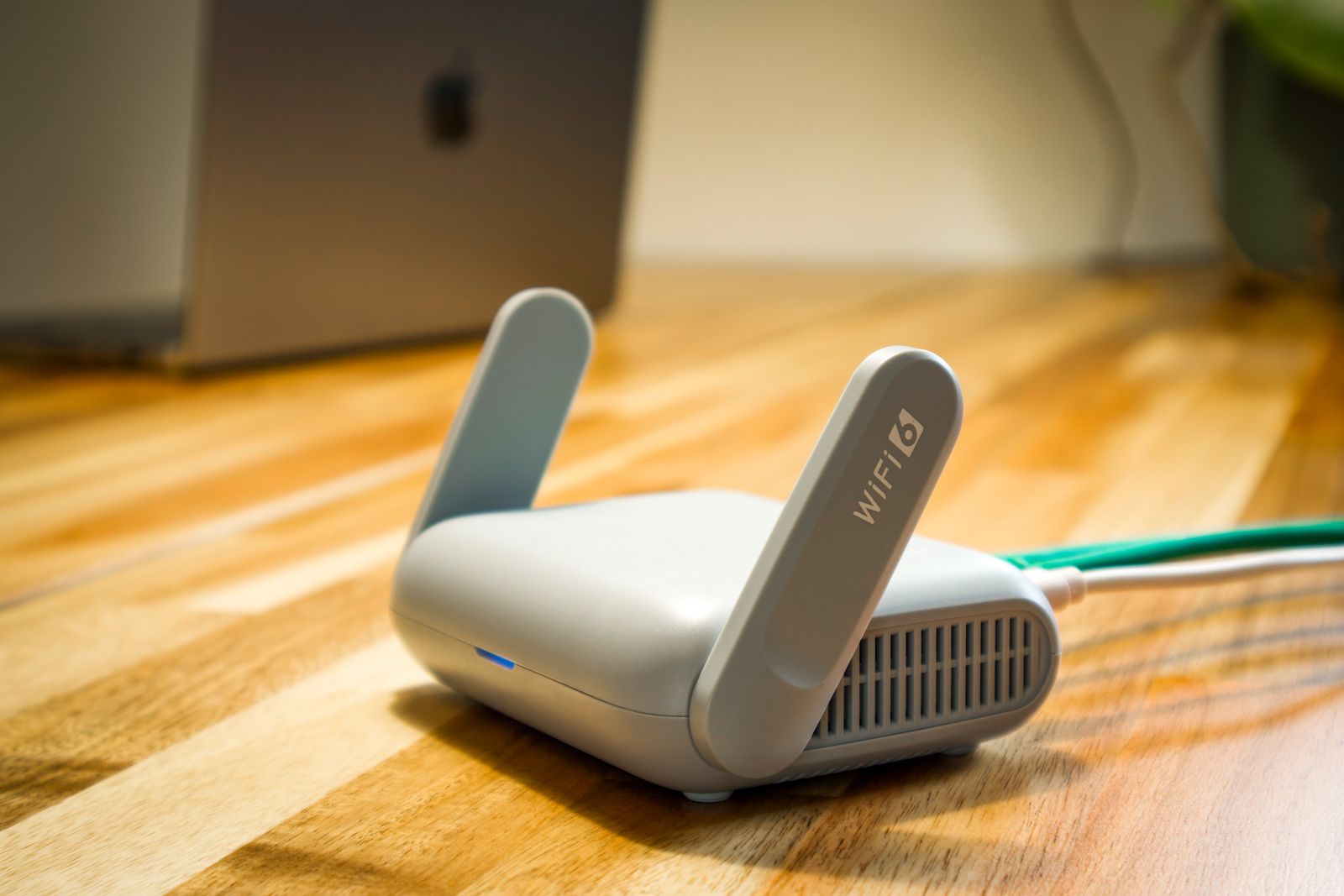
To secure your home WiFi, start here: change your router's default admin password, set a long unique WiFi password, switch on WPA3 (or WPA2-AES), turn on a guest network, and update the router's firmware. Those five steps take about 15 minutes and block most opportunistic attacks on home networks.
Most home networks run whatever settings the installer left behind. This guide walks through how to secure home WiFi network defences step by step, using only a browser and the login details on the router's sticker.
Why Is the Default Router Password Dangerous?
Your router has two passwords. The WiFi password lets devices join your network; the admin password logs you into the router's settings — and it is the one attackers want. With admin access, someone can change your DNS settings, redirect your traffic, or lock you out.
Default admin credentials like "admin/admin" are published in manuals and online databases. Change yours first: log into your router (usually at 192.168.1.1 or 192.168.0.1), find the Administration section, and set a password you use nowhere else. Note the router's model too — you will need it for the firmware step.
How Do I Pick a Strong WiFi Password?
A strong WiFi password is long, not complicated. A passphrase of four random words — for example, "correct-horse-battery-staple" style, but your own words — beats a short jumble of symbols because length is what slows down guessing attacks. Aim for at least 16 characters.
Three rules that matter more than cleverness:
- Never reuse it. If a website you use gets breached, a reused password hands your WiFi to the attacker too.
- Do not share it in plain text. Use your phone's built-in WiFi sharing (a QR code on iPhone and Android) instead of texting the password to guests.
- Change it when someone moves out. An ex-housemate or former tenant with your password still has network access from the street.
Changing the password disconnects every device, so reconnect each one with the new password handy. Any device you do not recognise trying to reconnect should never have been on your network.
Which WiFi Encryption Should I Use: WPA2 or WPA3?
Encryption scrambles data travelling over the air between your devices and the router. Your router's wireless security setting controls it:
| Setting | Verdict |
|---|---|
| WPA3-Personal | Best — use it if your router and devices support it |
| WPA2-AES (WPA2-PSK) | Good — the safe fallback for older devices |
| WPA/WPA2 mixed, TKIP | Weak — upgrade if you can |
| WEP or Open (no password) | Unsafe — never use these |
WPA3's advantage is practical: it encrypts each device's traffic separately, so a guest cannot snoop on your laptop, and it makes offline password-guessing far harder. If an older gadget refuses WPA3, use your router's WPA2/WPA3 transition mode rather than dropping the whole network back to WPA2.
Should I Set Up a Guest Network?
Yes — this is the most underused home-network security feature, and it costs nothing. A guest network is a second WiFi network your router broadcasts, isolated from your main one: guests get internet, but no access to your computers, shared folders, printers, or smart-home controls.
Put two categories of device on the guest network, not just visitors:
- Visitors' phones and laptops — you cannot vouch for their security, so do not give them the keys to your main network.
- Cheap smart-home gadgets — budget cameras, plugs, and bulbs rarely get security updates. If one is compromised, isolation stops the attacker reaching your laptop or NAS.
Give the guest network its own password, different from your main one, and you can rotate it freely without reconnecting your own devices.
If your router offers AP isolation or client isolation on the guest network, turn it on: it stops guest devices from talking to each other, not just to your main network. And rename your own devices in the router's device list while you are there — knowing that 'Living-room TV' is yours makes an unfamiliar device stand out at a glance next time you check.
Why Do Router Firmware Updates Matter?
Firmware is your router's operating system, and like any software, it has bugs — some of them security holes that attackers actively scan for. Manufacturers patch these quietly, and a router that has never been updated can be years behind.
Check for updates in your router's Administration or Firmware section, and turn on automatic updates if offered — the one setting that keeps protecting you after the 15 minutes are over. If not, set a quarterly reminder to check. Also disable remote administration (WAN access to the settings page) unless you genuinely use it.
How do I know if someone is already on my network?
Most intrusions are discovered by looking, not by an alarm. Once a month — or right after you suspect a problem — open your router's connected-devices list and check it against what you actually own.
- A device you do not recognise. Check the name and MAC address in the list. Before you panic, remember that some gadgets appear under the manufacturer's name ("Espressif", "Hon Hai") rather than their own — those are usually a smart plug or a printer. If you still cannot place it, block it, then change your WiFi password.
- The internet slows at odd hours. A neighbor streaming through your connection at 2 AM looks a lot like a slow plan. If a wired speed test is fine but WiFi is slow when it should be quiet, someone may be using your network.
- Settings you did not change. A different network name, a password that no longer works, or port-forward rules you never created mean your router itself has been accessed — treat this as a real compromise.
Found something? Do this, in order: change your WiFi password, change your router admin password, reboot the router, update the firmware, and check the settings again. If settings keep changing after that, back up your settings, reset the router to factory defaults, and set it up again from scratch — that is the only way to be sure a changed setting is gone.
Three extra switches worth turning on
The five main steps cover almost everything. These three take another five minutes and close the gaps that remain.
- Check the router firewall is on. Most modern routers ship with their built-in firewall enabled; look in the Security or Firewall section of the settings and make sure it is on. It blocks unsolicited incoming connections, and there is no reason to turn it off for normal home use.
- Point your signal inward. A router pressed against an outside wall broadcasts half its signal to the street and your neighbors. Move it toward the center of your home — the same spot that gives you the fastest WiFi also gives strangers the weakest signal outside it. See our guide to improving WiFi speed at home for placement that helps both speed and security.
- Use a VPN when you leave the house. A VPN does not make your home WiFi safer once the router is locked down — but it does protect you on the coffee-shop and hotel networks you join with the same laptop. See whether a VPN slows down your speed before you pick one.
One thing that is not a security measure: hiding your WiFi network name (SSID). It does not stop anyone scanning for networks, and it can cause your devices to leak the name when they look for it. Keep the name visible, and rely on WPA3 and a long password instead.
How to Secure Home WiFi Network: The 15-Minute Checklist
Work through this in order — each step takes two or three minutes:
- Change the admin password (2 min) — replace the factory default with a unique password.
- Set a long WiFi passphrase (2 min) — 16+ characters, unique, not reused anywhere.
- Switch encryption to WPA3 (2 min) — or WPA2-AES with transition mode for older devices.
- Turn on the guest network (3 min) — separate password, for visitors and smart-home gadgets.
- Update the firmware (3 min) — and enable automatic updates if available.
- Disable remote administration and WPS (2 min) — WPS PIN mode is a known weak point; use the push-button method only if you must.
- Check connected devices (1 min) — look at the router's client list and remove anything you do not recognise.
One concrete test to prove it worked: open your router's connected-devices list and confirm only your own devices appear. Then run a speed test from your phone — securing a network should not slow it down. Test your speed on Elite Hub and confirm your connection still performs as it should.
Home WiFi security at a glance
| Step | What to do |
|---|---|
| Change the default router admin password | Replace the factory default admin password with a unique password. |
| Use WPA3, or WPA2-AES where WPA3 is unavailable | Switch encryption to WPA3, or WPA2-AES for older devices. |
| Use a strong unique WiFi password | Set a long, unique WiFi passphrase, 16+ characters, not reused anywhere else. |
| Set up a separate guest network | Turn on a guest network with a separate password, for visitors and smart-home gadgets. |
| Keep router firmware updated | Update the firmware and enable automatic updates if available. |
| Disable remote administration and WPS | Turn off remote admin access and the WPS PIN; use the push-button method only if you must. |
| Review connected devices monthly | Check the router's client list for devices you do not recognise and block or remove them. |
Frequently Asked Questions
What is the first thing I should do to secure my home WiFi?
Change the default admin password on your router and set a long, unique WiFi password. Default credentials are public knowledge and are the first thing an attacker tries.
Is WPA2 or WPA3 better for home WiFi security?
WPA3 is better: it encrypts each device's connection separately and resists password-guessing attacks. Use WPA3 if your router and devices support it; otherwise use WPA2-AES, never WEP or open security.
Should I set up a guest network?
Yes. A guest network keeps visitors and smart-home gadgets on a separate network, so a compromised guest device cannot reach your computers, phones, or shared files.
How often should I update my router's firmware?
Check for firmware updates every few months, or turn on automatic updates if your router offers them. Firmware updates patch security holes that attackers actively exploit.
What should I do if I think someone is using my WiFi?
Change your WiFi password and your router admin password, reboot the router, and check the connected-devices list again. If the unknown device is gone, you were right — and it is locked out now. If settings keep changing after that, reset the router to factory defaults and set it up again from scratch. See the section above on spotting an intruder for the full list of warning signs.
Does hiding my WiFi network (SSID) make it more secure?
No. Hiding the network name does not stop anyone scanning for networks, and it can make your devices leak the name when they search for it. Keep the name visible and rely on WPA3 and a long, unique password — that is what actually protects you.
Do I need a VPN to secure my home WiFi?
No, not for your home network itself — once your router has a strong password and WPA3, a VPN adds nothing at home. A VPN is useful on public WiFi (cafes, hotels, airports), where it encrypts your traffic against strangers on the same network. It can slow your connection slightly, so choose a reputable provider.
Check Your Connection After Securing It
Run a quick test to make sure your newly secured network is still fast.
Test your speed →