 Elite Hub
How to Improve WiFi Speed at Home: 12 Fixes That Actually Work
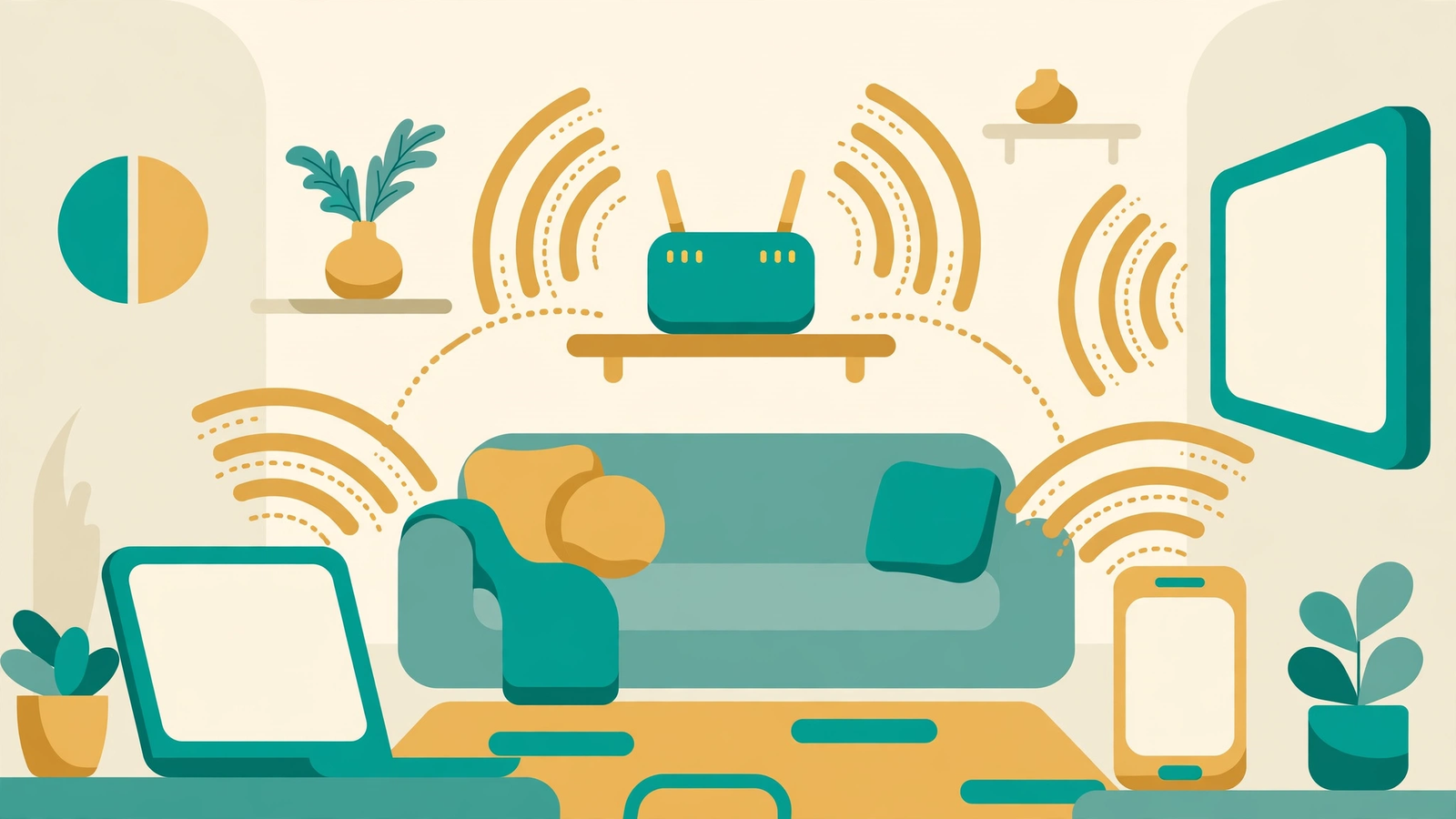
To improve WiFi speed at home, move your router to a central, elevated, open spot, switch to the faster 5 GHz band or a less crowded channel, and restart the router. Those three free fixes recover most lost speed, so try them first, measure the result, and only then spend money on new hardware or a faster plan.
Why is my WiFi slow in the first place?
Your internet plan's headline number is measured at the modem — by the time it travels through WiFi, walls, interference, and a dozen connected devices, 30–60% of it can vanish. The good news: most of that loss is fixable without spending anything.
In short, slow WiFi at home is usually a signal problem, not a plan problem — which is why this guide starts with placement, band and channel, and a restart before it touches settings or hardware.
Start with a baseline. Stand near your router and run our free speed test, then walk to the room where things feel slow and test again. The gap between the two numbers tells you whether you're fighting your plan (both low) or your WiFi (fast near the router, slow far away). Most people are fighting their WiFi — the fixable one.
What speed do you actually need? (before you fix anything)
Before you move a router or change a setting, check whether your plan is fast enough for what your household does. No router tweak can deliver speed your plan does not provide.
| Activity | Download speed you need | What to know |
|---|---|---|
| Browsing and email | 5–10 Mbps | Almost any plan covers it |
| HD streaming (one screen) | 10–25 Mbps | Steadiness matters more than peak speed |
| 4K streaming (one screen) | 25–50 Mbps | Add 25 Mbps per extra 4K screen |
| Video calls | 10–25 Mbps | Upload matters too — see what good upload speed looks like |
| Online gaming | 25–50 Mbps | Latency matters more than speed |
| Working from home, 2 people | 50–100 Mbps | Calls, sync, and streaming add up fast |
If your plan is below what you need: run a wired speed test next to the router. If the wired result is already below your plan, the problem is the plan or the line — no router fix will help, and a plan upgrade or a call to your ISP is the answer. If the wired result is fine but WiFi is slow, work through the fixes below. If only your phone is slow, the fix is usually on the phone — see how to speed up WiFi on your phone.
Fix 1: Where should I place my router?
Router placement is the highest-impact free fix there is. WiFi signals radiate outward and downward from the antennas and lose strength through brick, concrete, metal, and water — fish tanks and radiators genuinely block signal.
- Central and high: the middle of your home on a shelf, not a corner on the floor. A router in the living room corner covers half your house; on a central bookshelf it covers all of it.
- Open, not boxed in: out of TV cabinets, closets, and behind sofas. Antennas need as much line-of-sight as possible.
- Away from interference: at least 1 meter from microwaves, baby monitors, and Bluetooth speakers — they all transmit on or near the 2.4 GHz band.
Router antennas: if your router has external antennas, point one straight up and one at a 45° angle. Antennas broadcast sideways from their length, so an upright antenna covers your floor best and a tilted one reaches the floor above or below. For a single floor, all antennas up is fine; for two floors, tilt at least one. This two-second change is free and often buys a bar of signal in the next room. For the full walkthrough, see where to place your router for the best WiFi.
Fix 2: Restart your router — monthly, and once right now
Unplug the power cable, wait a full 30 seconds, plug it back in, and give it 2–3 minutes to reconnect. This clears memory leaks, refreshes your ISP session, and forces the router to re-scan for a less congested channel.
Fix 3: Should I use 2.4 GHz or 5 GHz?
| Band | Best for | Why |
|---|---|---|
| 5 GHz | Streaming, gaming, video calls, work laptop | Much faster; short range (~10 m through walls) |
| 2.4 GHz | Smart plugs, cameras, far bedrooms, backyard | Slower but travels farther and through walls |
If your router offers one combined network name (band steering), leave it on. If you see two names (e.g. HomeWiFi and HomeWiFi_5G), connect speed-critical devices to the 5 GHz one manually. Anyone learning how to improve WiFi speed at home for gaming or 4K streaming should start here: the 5 GHz band is almost always the answer within reasonable range of the router.
Fix 4: Switch to a less crowded WiFi channel
In apartments and dense neighborhoods, ten routers shouting on the same channel slows everyone down. Log into your router's admin page (usually 192.168.0.1 or 192.168.1.1 — the address is on the router's sticker), find the wireless settings, and switch 2.4 GHz to channel 1, 6, or 11 (these three don't overlap) while leaving 5 GHz on “Auto”. A free WiFi analyzer app shows which channels your neighbors use — pick the emptiest one and re-test.
Fixes 5–8: The settings most people never touch
- Update your router's firmware. Manufacturers patch performance and security bugs constantly — check the admin page or the router app for an update button, and turn on automatic updates if your router offers them. Important: update over Ethernet or from right next to the router, never over a weak Wi-Fi link — if the connection drops mid-update, the router can be left half-flashed and unusable.
- Kick unknown devices off your network. Check the admin page's connected-devices list — most routers show device names, and every device on your network is a share of your speed. If you spot gadgets you don't recognize, change your WiFi password (WPA2 or WPA3) and reconnect only your own devices — a neighbor piggybacking on your network slows you down and is a security risk. If your home is full of smart gadgets, keep them on the 2.4 GHz band and your work devices on 5 GHz, so a slow smart plug never drags down your laptop.
- Try a faster DNS. DNS barely affects download speed, but a slow DNS makes every page feel sluggish, because your browser waits for an address before it can even start loading. Switching to 1.1.1.1 or 8.8.8.8 is free and takes two minutes — enter it in the router's DNS settings or on the device itself. Re-test with your usual sites; if pages snap open faster, keep it.
- Turn on QoS. Most routers can prioritize traffic — tell yours to favor video calls and gaming over background downloads, and Zoom stops freezing when someone updates an app. In the router's QoS settings, put your work laptop first, then video-calling apps, and leave cloud backups and file syncing at the bottom of the list. Some newer routers do this automatically with 'intelligent' or 'adaptive' QoS — leave it on if yours has it.
Measure before and after every fix
Run our free speed test now, apply the fixes, then test again.
⚡ Test Your Speed FreeIs your router too old for your plan?
Even the fastest plan cannot beat a router whose Wi-Fi standard is too old. The standard is printed on the box or on the router's label — if it says 802.11ac, it is Wi-Fi 5; 802.11ax is Wi-Fi 6; 802.11be is Wi-Fi 7.
| Wi-Fi standard | Typical real-world speed | What it means for you |
|---|---|---|
| Wi-Fi 5 (802.11ac, 2013) | Up to ~500 Mbps | Fine for plans under 300 Mbps; struggles with many devices at once |
| Wi-Fi 6 (802.11ax, 2019) | Up to ~900 Mbps | Handles crowded homes — many devices, less waiting; the sensible upgrade today |
| Wi-Fi 6E | Up to ~1 Gbps | Wi-Fi 6 plus a clean 6 GHz band; worth it if your devices support it |
| Wi-Fi 7 (802.11be, 2024) | Up to ~2 Gbps | Overkill for most homes today; buy it only if you are replacing a router anyway |
Before you buy anything, check what your plan actually delivers next to the router: if the wired speed is far below your plan, the problem is the plan or the line — call the provider. If the wired speed is fine but Wi-Fi is slow everywhere, suspect the router. The band matters too: 5 GHz is where most of the speed is — see our plain-English guide to 2.4 GHz vs 5 GHz WiFi.
Fixes 9–12: When it's the hardware, not you
- Plug in what matters. If your desk PC, TV, or console sits near the router, run an Ethernet cable to it. Wired is always faster and more stable — and it frees wireless airtime for everything else.
- Replace an old router. A router older than 4–5 years, or one that can't do WiFi 5 (802.11ac), will bottleneck even a fast plan. A modern WiFi 6 router is the single biggest paid upgrade for most homes.
- Consider mesh for big or awkward homes. If speed dies two rooms away, an extender only repeats a weak signal; a mesh system gives every corner its own strong access point.
- Call your ISP last — with data. If wired tests at the modem are far below your plan's speed, screenshot tests from different times of day and call. “My speed is 40% of my plan, here are the tests” gets results.
Should you buy an extender, a mesh system, or a powerline adapter?
When a room stays slow after placement, channel, and settings fixes, the house — not the settings — is the problem. Three gadgets can reach that room, and they are not interchangeable.
| Option | Best for | Watch out for |
|---|---|---|
| Wi-Fi extender | One stubborn dead spot in a small flat | It repeats a weak signal and usually halves the speed; place it halfway between the router and the dead spot, not inside it |
| Mesh system | Larger homes, thick walls, multiple floors | Costs more, but every node gives a strong signal of its own — the fix that actually works for big homes |
| Powerline adapter | A room where Wi-Fi will not reach but the wiring is good | Speed depends on your home's wiring; useless if the room is on a different circuit |
Rule of thumb: an extender is the cheapest experiment for a single room, mesh is the right answer for a whole home, and powerline wins for one wired-only device like a TV or console. Compare the two most common choices in our mesh WiFi vs extenders guide before you spend anything.
“Measure twice, fix once — the speed test is your diagnostic tool, not just a number.”
Work through the list in order — measure, place, restart, band, channel, settings, then hardware — re-testing after each change. Most homes reach 80–90% of their plan's speed without spending anything.
What if nothing works? When to call your ISP
If you have worked through placement, band, channel, settings, and hardware and WiFi is still slow, gather evidence before you call. Three quick tests show you — and your ISP — where the fault is.
- Wired test at the router: plug a laptop in by Ethernet, close everything else, and note download, upload, and ping.
- Test at 2 a.m. and 8 p.m., same device and spot: a big evening drop means congestion, not your WiFi.
- Try a different device in the same room: if only one is slow, that device is the problem, not the line.
Quote your plan speed, wired result, test times, and ping to your ISP. If the wired speed is well below your plan at every hour, ask for a line check — that is a fault, not a plan problem. If wired matches your plan but evenings crawl, ask about congestion. Upgrade your plan only when wired already matches what you pay for and your household simply needs more than the table above allows.
Frequently asked questions
WiFi overhead, distance from the router, interference, congestion, and outdated hardware can cut your real-world speed well below your plan's advertised rate. Placement and channel fixes usually recover the biggest losses for free.
Yes, temporarily. A restart clears memory leaks, refreshes your connection to your ISP, and forces the router to re-scan for a less congested WiFi channel.
Use 5 GHz for speed near the router (streaming, gaming, video calls) and 2.4 GHz for range (far bedrooms, smart devices, backyard).
If your router is more than 4–5 years old, lacks WiFi 5 (802.11ac) or newer, or maxes out below your plan's speed on a wired test, no setting will fix it.
For a single dead spot, a cheap extender can be enough — try it first and return it if it disappoints. For anything bigger — thick walls, multiple floors, or slow coverage in several rooms — a mesh system is better, because each node creates its own strong signal instead of repeating a weak one. See the comparison in the extender vs. mesh section above before you buy.
Dense materials: concrete, brick, metal, mirrors, and water (fish tanks, radiators). Next come distance and other networks — a neighbor's router on your channel is invisible interference. The fixes in order: move the router to the center and up high, switch to a quiet 1/6/11 channel (or to 5 GHz), and only then buy hardware.
Evening is peak time: your neighbors stream, game, and video-call on the same shared connection, and everyone on your own network is home too. If a wired test is also slow at 8 PM but fine at 8 AM, it is your provider's network, not your Wi-Fi — check your plan or talk to your ISP. If only Wi-Fi drags at night, a neighbor's network is probably crowding your channel.