 Elite Hub
2.4 GHz vs 5 GHz WiFi: Which Band Should You Use?
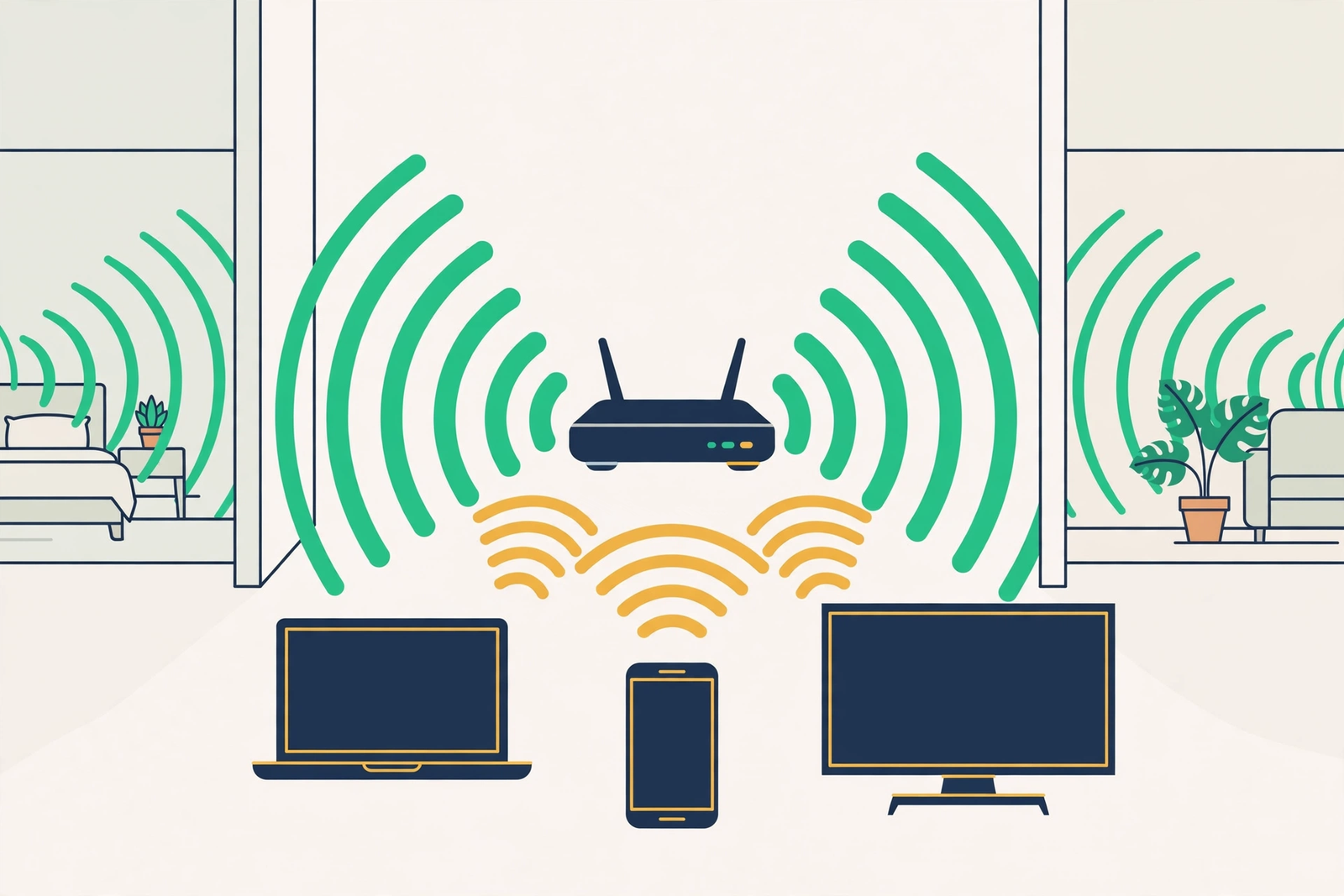
2.4 GHz vs 5 GHz: which is better? Neither wins outright. 5 GHz is faster when you are near the router, while 2.4 GHz reaches further through walls and floors. So use 5 GHz for speed-hungry devices close to the router, and 2.4 GHz for distant devices and smart-home gadgets that only need a steady trickle of data.
What is the difference between 2.4 GHz and 5 GHz?
Your router broadcasts WiFi on radio bands, and most modern routers offer two: 2.4 GHz and 5 GHz. Think of them as two roads from the same router. The 2.4 GHz road is long and wide-reaching but narrow, so traffic moves more slowly and can jam up. The 5 GHz road is shorter but much wider, so traffic moves fast — as long as you are not too far from the start.
The physics is simple. Lower-frequency waves travel further and pass through walls, floors, and furniture more easily. Higher-frequency waves carry more data per second but fade faster when they meet obstacles. That single trade-off — range versus speed — explains almost every difference between the two bands.
There is one more difference that matters in flats and crowded streets. The 2.4 GHz band has only three non-overlapping channels, and it is shared with Bluetooth devices, baby monitors, and microwaves, so your neighbours' routers compete for the same narrow space. The 5 GHz band has many more channels and far fewer competing gadgets, so it is usually much quieter — another reason it feels faster in practice, not just on paper.
2.4 GHz vs 5 GHz: which is better?
It depends on where the device sits and what it does. Compare them head to head:
| 2.4 GHz | 5 GHz | |
|---|---|---|
| Top real-world speed | Up to ~150 Mbps | Up to ~1 Gbps on WiFi 5/6 routers |
| Range through walls | Excellent — best for far rooms and other floors | Good in the same room, weak through two or more walls |
| Congestion | High — few channels, many neighbours and gadgets | Low — many channels, less interference |
| Best for | Smart-home gadgets, distant rooms, basic browsing | Streaming, gaming, video calls, large downloads |
So 2.4 GHz vs 5 GHz is not a contest with one winner. If your laptop sits two rooms from the router and your video call keeps freezing on 5 GHz, switching to 2.4 GHz can genuinely fix it — a slower but stable connection beats a fast one that keeps dropping. And if your TV buffers on 2.4 GHz in the same room as the router, 5 GHz will usually clear it up at once. The right question is never "which band is best?" but "which band is best for this device, in this room?"
"5 GHz is the fast lane, 2.4 GHz is the long road. Use the fast lane when you are close, and the long road when you are far."
Which devices should use which band?
Use this device-by-device rule of thumb, and you will get it right in most homes without thinking about it again:
| Device | Best band | Why |
|---|---|---|
| TV streaming 4K, games console, work laptop | 5 GHz | Needs high speed; usually near the router |
| Phone, tablet (main rooms) | 5 GHz | Fast browsing and video where signal is strong |
| Phone, tablet (far rooms, garden) | 2.4 GHz | Range matters more than top speed there |
| Smart bulbs, plugs, cameras, doorbell | 2.4 GHz | Most only support 2.4 GHz, and need range, not speed |
| Printer, old laptop, e-reader | 2.4 GHz | Often 2.4 GHz only; light data needs |
One caution: many smart-home gadgets only work on 2.4 GHz at all. If a smart bulb or camera refuses to connect during setup, it is almost always because your phone is on 5 GHz while the gadget is listening on 2.4 GHz. Temporarily join the 2.4 GHz network on your phone, finish setup, and the gadget will stay connected afterwards.
How do you switch bands or split them on your router?
Most routers ship with "band steering" switched on: both bands share one network name, and the router quietly moves each device to the band it thinks is best. For most people, that is fine — leave it alone and let the router decide.
But band steering sometimes gets it wrong, parking a laptop on a weak 5 GHz signal when 2.4 GHz would be steadier. If that happens, split the bands so you can choose yourself:
- Log in to your router. Open a browser and visit the address printed on the router's label — usually 192.168.1.1 or 192.168.0.1 — and sign in with the admin password on the same label.
- Find the wireless settings. Look for "Wireless", "WiFi", or "Band Steering" — the exact wording varies by brand, but it is usually one click from the main settings page.
- Turn band steering off and rename the networks. Give them clearly different names, such as "MyWiFi" for 2.4 GHz and "MyWiFi-5G" for 5 GHz, then save and let the router restart.
- Reconnect each device to its chosen band. Join the right network on each device once; it will remember the choice from then on.
If you would rather not split, there is a simpler middle step: on a single device, "forget" the combined network and reconnect while standing in the room where it will mostly be used — the router will usually steer it to the sensible band for that spot. And if one room still gets neither band well, that is a coverage problem, not a band problem: see our router placement guide or consider a mesh system.
Test each band in your home
Run our free speed test on 2.4 GHz, then again on 5 GHz, from the same spot — the numbers will tell you which band actually wins in each room.
⚡ Test Your Speed FreeHow can you test which band is faster in your home?
Do not trust the advertised speeds — test both bands where you actually use them. It takes five minutes and settles the argument for your house specifically.
- Compare stability, not just the headline speed. A 5 GHz reading of 300 Mbps that collapses to 20 Mbps when someone walks past is worse for video calls than a steady 60 Mbps on 2.4 GHz.
- Test at the time you actually use the room. Evening congestion hits 2.4 GHz hardest, so a daytime test can flatter it. Run your comparison in the evening if that is when the room matters.
- Re-test after moving the router. Even a small move — higher up, out of a cupboard, away from the TV — can change which band wins in a far room, so test again after any placement change.
The bottom line: 2.4 GHz vs 5 GHz is a choice you make per device, per room — 5 GHz for speed close to the router, 2.4 GHz for range and smart-home gadgets. Set it once with the table above, test it with the five-minute comparison, and your WiFi will stop being something you think about.
Frequently asked questions
For speed, yes — 5 GHz is much faster than 2.4 GHz when you are in the same room as the router or one room away. For range, no — 2.4 GHz travels further and passes through walls and floors better. Neither band is better in every situation, which is why most routers offer both.
Splitting helps if you want to control which band each device uses — for example, putting your TV on 5 GHz and your smart bulbs on 2.4 GHz. If you prefer simplicity, leave band steering on and let the router choose; only split if a device keeps landing on the wrong band.
Because 5 GHz signals weaken faster through walls, floors, and furniture than 2.4 GHz signals do. In a far room or another floor, the 5 GHz signal may be too weak to use, while the 2.4 GHz signal still reaches. That is normal, not a fault — switch that room's devices to 2.4 GHz or add a mesh unit or extender.
Yes. A dual-band router runs both bands at once, and your devices can use different bands simultaneously. Your phone can be on 5 GHz in the living room while a smart plug runs on 2.4 GHz in the garage, with no conflict between them.