 Elite Hub
How to Prioritize Devices on Your WiFi (QoS Explained)
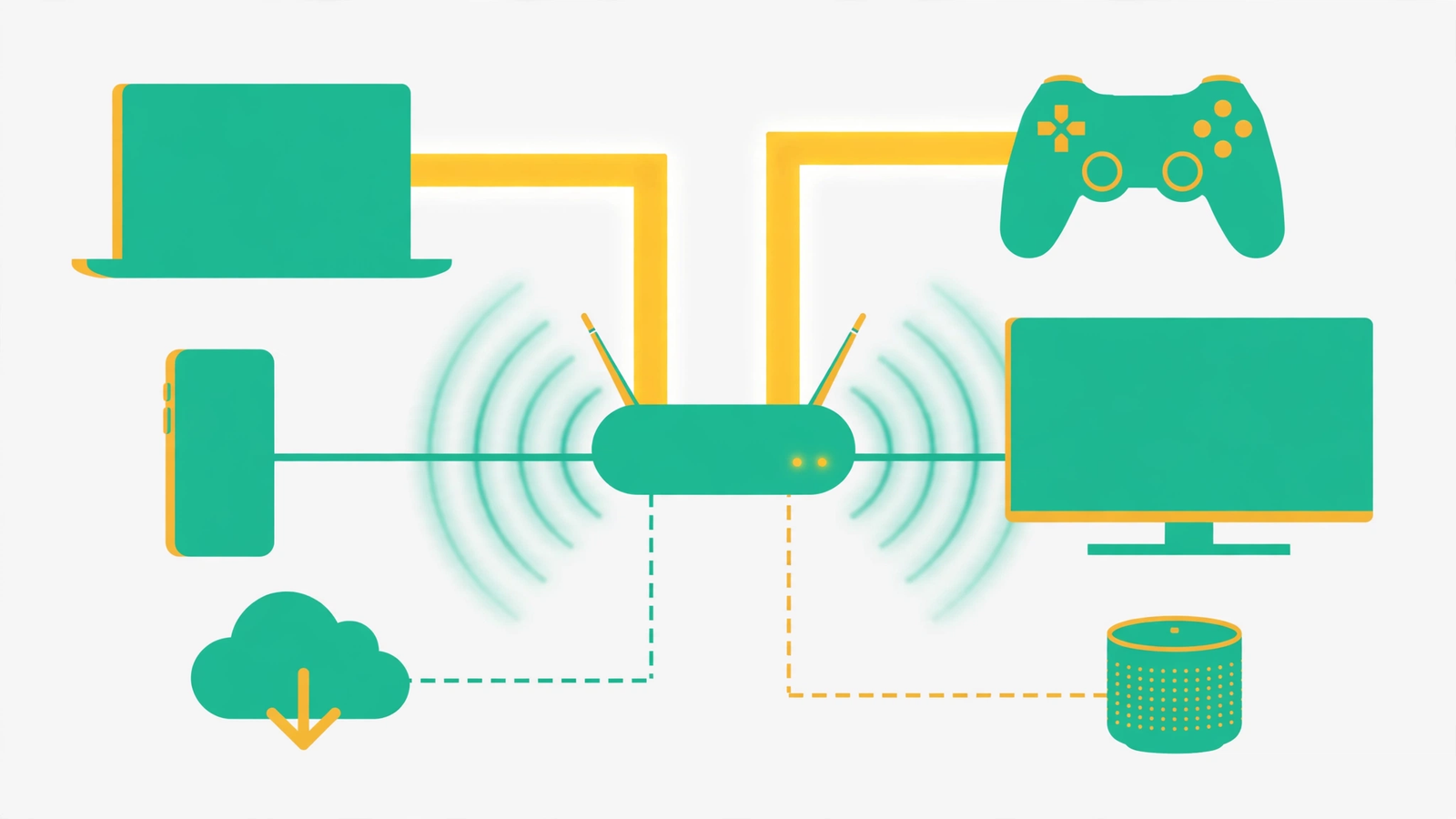
To prioritize devices on your WiFi, turn on QoS (Quality of Service) in your router's settings and give your most important devices — your work laptop, your console — the highest priority. Your router then serves those devices first whenever the connection is busy, so a cloud backup or a smart TV can no longer freeze your video call or spike your game ping. It takes about ten minutes and costs nothing.
What is QoS, and why does your router need it?
QoS stands for Quality of Service. It is a router feature that decides who gets bandwidth first when more devices want it than your connection can supply. Without QoS, your router treats every device equally — your work laptop's video call gets exactly the same share as a phone backing up photos to the cloud. That sounds fair, but it is not what you want: a call needs a small, steady stream right now, while a backup is happy to finish ten minutes later.
Think of it like a checkout queue. Without QoS, everyone stands in one line and the person with a full cart blocks the person buying one item. With QoS, the router opens a fast lane: real-time traffic (calls, games, streams) goes first, and bulk traffic (backups, downloads, updates) fills in the gaps. The total speed of your connection does not change — QoS only changes the order in which devices use it.
This matters most on connections where the upload is small. A video call needs only 3–5 Mbps, but if a backup is saturating a 10 Mbps upload, your call's packets wait behind thousands of backup packets — and that waiting is what you experience as frozen video and robotic audio. That is also why QoS pairs so well with our guide on bufferbloat, the hidden cause of lag on a fast connection.
Which devices should get priority on your WiFi?
Priority should follow one rule: the device that suffers most when it waits goes first. In most homes that means two or three devices at most — prioritizing everything is the same as prioritizing nothing.
| Priority | Devices | Why they go first |
|---|---|---|
| Highest | Work laptop, gaming console or PC | Live calls and games break the moment packets wait — a 200 ms delay ruins both |
| Medium | Smart TV, streaming stick | Video buffers ahead, so a short delay is invisible — but it still needs steady bandwidth |
| Low | Phones, tablets, smart speakers | Mostly short bursts (messages, music); they recover instantly from a wait |
| Lowest | Cloud backups, NAS, security cameras, updates | Bulk traffic that is happy to run slowly in the background for hours |
Keep the high-priority list short. If your work laptop and your console are both high priority, that is fine — they rarely demand peak bandwidth at the same time. But if you mark eight devices "highest", the router has no meaningful order left to enforce.
How to prioritize devices on WiFi with QoS in 5 steps
Almost every router made in the last ten years has QoS — it is usually just switched off by default. The menu names differ by brand, but the steps are the same.
- Open your router's admin page. In a browser, go to 192.168.1.1 or 192.168.0.1 and log in (the password is on the sticker on the router unless you changed it).
- Find QoS. Look under Advanced, Traffic Control, or Bandwidth Management for "QoS", "Quality of Service", or "Device Priority". On TP-Link it is often "QoS" under Advanced; on ASUS it is "Adaptive QoS"; on Netgear it is "Dynamic QoS"; on ISP routers it may hide under "Traffic Management".
- Set your real speeds. QoS needs to know your plan's download and upload speeds to divide them fairly — enter the numbers from a speed test, or the speeds your ISP promised. Getting this wrong is the most common setup mistake: enter 100 Mbps when you actually get 50, and the router will hand out bandwidth it does not have.
- Pick your priority devices. Select your work laptop and console from the device list (they usually appear by name — if not, match the MAC address shown in your device's Wi-Fi settings) and set them to High or Highest. Put backups, cameras, and update-hungry devices on Low. Save the settings.
- Turn QoS on and reboot. Some routers need a restart for QoS to take effect. Do the test in the next section right after, while you still remember how things behaved before.
One warning: if your router's QoS only lets you set a percentage of bandwidth per device, do not hand your top device 90% — that starves everything else the moment it streams. A 60/40 split between your top device and the rest of the house is a safer starting point, and you can adjust from there.
Should I prioritize by device or by app?
There are two ways to prioritize devices on WiFi, and the right one depends on your router. Device priority (also called device QoS) ranks whole devices: your laptop always beats your TV. App priority (sometimes called application QoS or traffic classification) ranks types of traffic: video calls and gaming beat downloads no matter which device they run on.
Device priority is simpler and works on nearly every router — pick it if your goal is "my work laptop must never freeze". App priority is smarter when several people share the same devices: your partner's call on the shared laptop still wins over your download on the same machine. The best routers offer both — device priority for your two most important devices, app priority for calls and gaming on top.
When is SQM better than plain QoS?
Plain QoS decides who gets bandwidth first, but it does not fix the queue itself. When a bulk upload fills your router's buffer, even high-priority packets can wait behind it — that is bufferbloat, and it is the reason some people turn QoS on and see no improvement.
SQM (Smart Queue Management) fixes the queue instead of just reordering it: it keeps the buffer short so every packet waits milliseconds, not seconds. If your router offers SQM — it appears on OpenWrt, ASUS Merlin, and some higher-end routers — use it instead of classic QoS, or alongside it. Set it to about 95% of your real download and upload speeds (the small haircut leaves headroom for the queue to work), then re-test. For most homes, SQM is the single most effective anti-lag setting a router has.
If your router has neither QoS nor SQM, your fallback is scheduling: run cloud backups overnight, pause game downloads during work hours, and put the biggest bandwidth hog on a wired connection. It is less elegant, but it removes the same collisions.
How do I test whether QoS actually worked?
Do not trust the settings page — learning how to prioritize devices on WiFi is only half the job; proving it worked is the other half. This before-and-after test takes five minutes.
- Start a big upload first. With QoS off, start a cloud backup or upload a large file from a low-priority device, then join a video call or start an online game on your priority device. Note the freezing, the audio glitches, or your ping.
- Turn QoS on and repeat the exact same test. Same backup, same call, same game. Your call should stay smooth and your ping should stay close to its idle value, while the backup simply takes a little longer to finish.
- Run a speed test on the priority device during the backup. Open elitehub.site while the backup is running. Download speed may dip slightly — that is normal — but the test should complete cleanly instead of stalling, and latency should stay low.
If nothing changed, check two things: that you entered your real speeds in step 3 (QoS cannot work with wrong numbers), and that the device you tested is actually the one you prioritized — a phone and a laptop with similar names are easy to mix up in the router's device list.
Frequently Asked Questions
What is QoS on a router?
QoS (Quality of Service) is a router setting that lets you decide which devices or types of traffic get bandwidth first when the connection is busy. Without it, every device competes equally — a cloud backup can take the same share as your video call. With it, your priority devices jump the queue and everything else waits its turn.
Does QoS actually make WiFi faster?
QoS does not raise your internet speed — your plan's limit stays the same. What it does is stop the wrong traffic from using your bandwidth at the wrong moment. A priority device gets a stable, low-lag connection even while other devices are busy, which is exactly what fixes frozen calls and laggy games on a crowded network.
Should I prioritize by device or by app?
Prioritize by device if you want one laptop or console to always win — it is the simplest setup and works on almost every router. Prioritize by app or traffic type (video calls, gaming) if your router offers it and several people share the same devices. If your router offers both, device priority for the two most important devices plus app priority for calls and gaming is the best combination.
Can QoS slow down my other devices?
Yes, slightly — that is the point. When the connection is busy, low-priority devices wait longer for their share. In practice the slowdown is small and only happens while a priority device is actively using bandwidth; a backup that finishes ten minutes later is a fair trade for a call that never freezes. If low-priority devices feel starved, lower the priority gap instead of turning QoS off.
Test Your Speed While QoS Does Its Job
Run a test on your priority device while a backup is running in the background — if QoS is working, the numbers stay clean and the latency stays low.
Test Your Speed Free